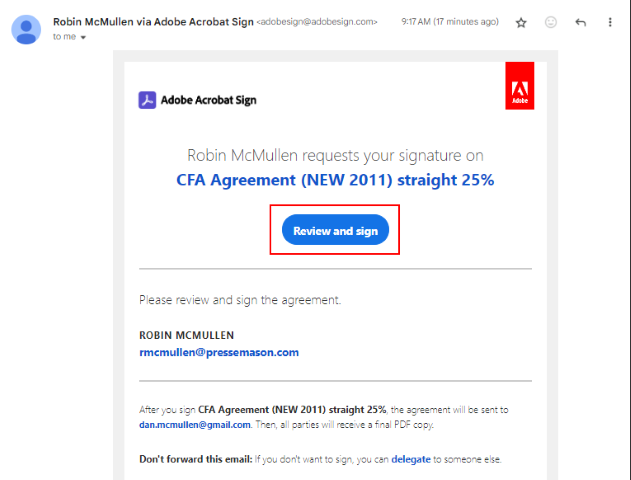
Click Review and sign
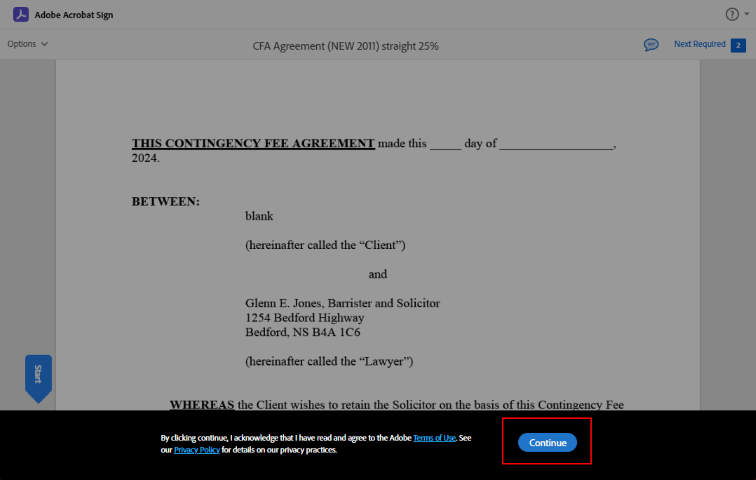
Click Continue to agree to Terms and Conditions
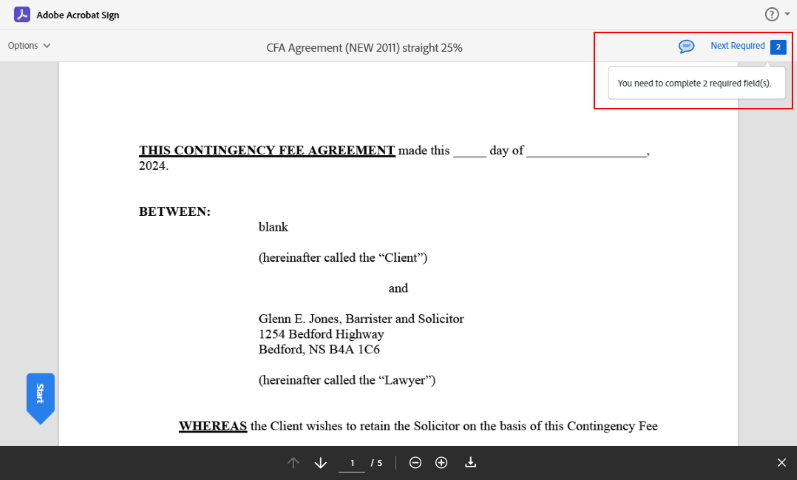
Click in Next Required
NOTE: there are 2 fields for initial signer
Click Click here to sign in the yellow field to start the signing process
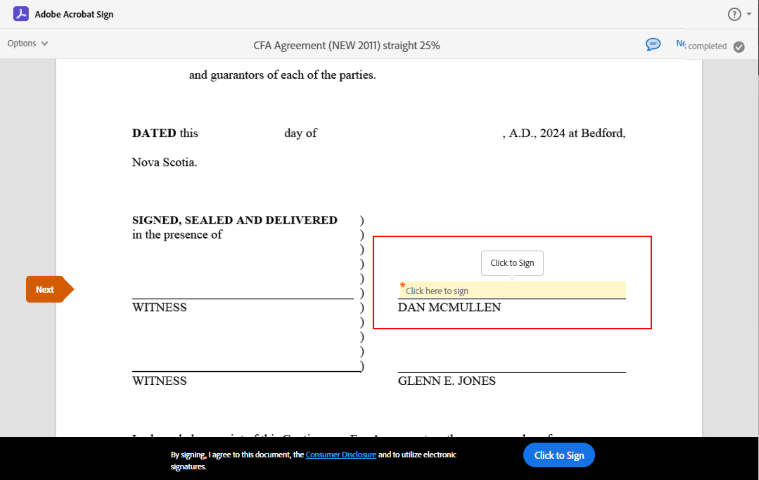
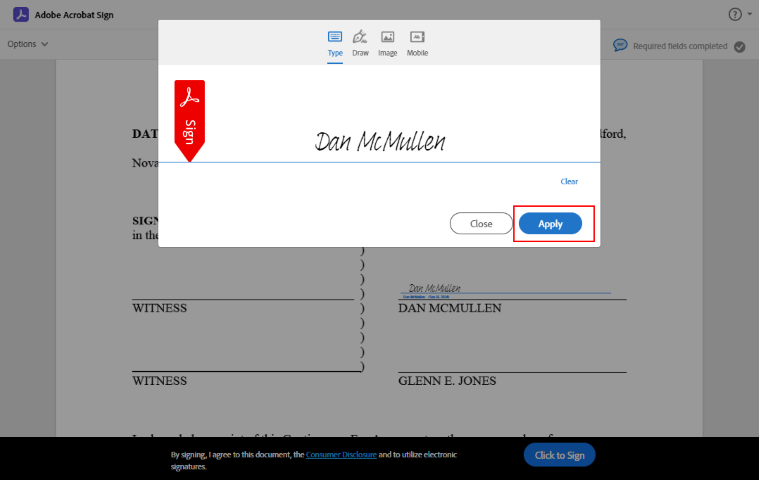
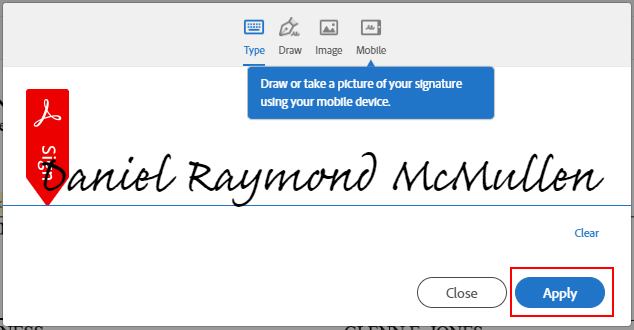
Your name is auto populated but can be typed or drawn
On Mobile the option to draw your signature is the default
Click Apply to continue
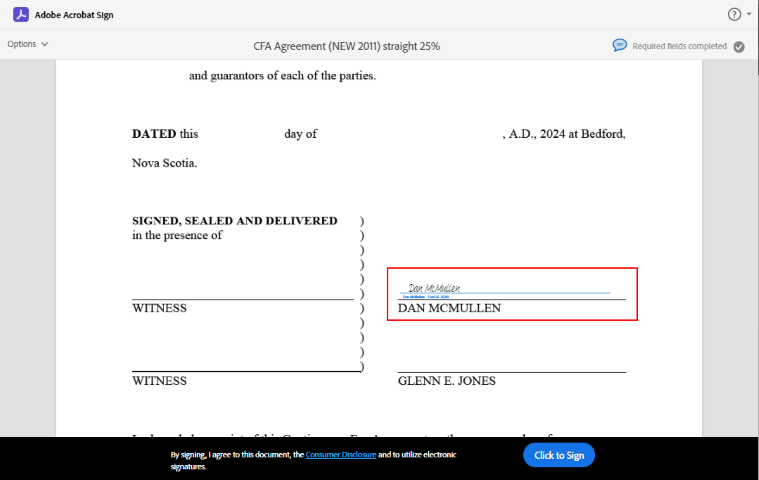
Your “signature” after clicking Apply
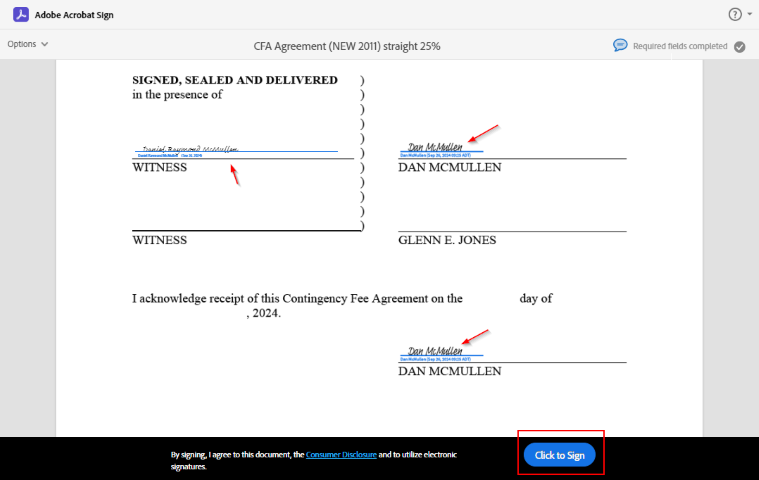
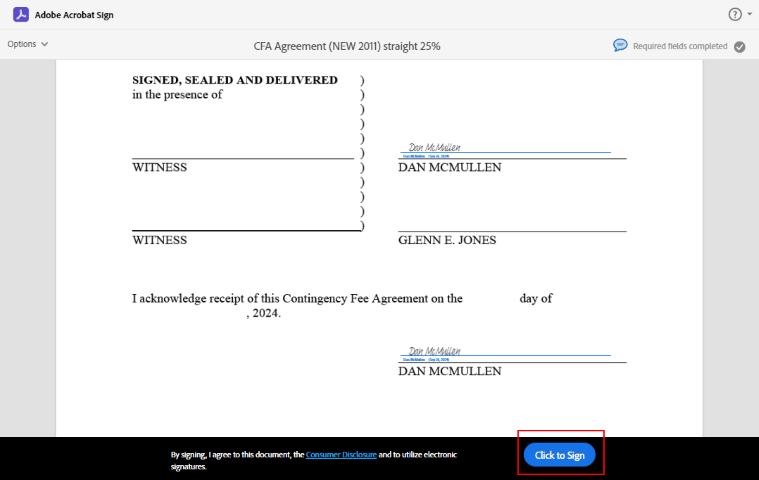
Once both signature fields are complete click Click to Sign
Click Review and sign
All steps will be the same, but only one signature is required
Click Continue to agree to Terms and Conditions followed by Next Required Field
Click Click here to sign in the yellow field to sign as the Witness
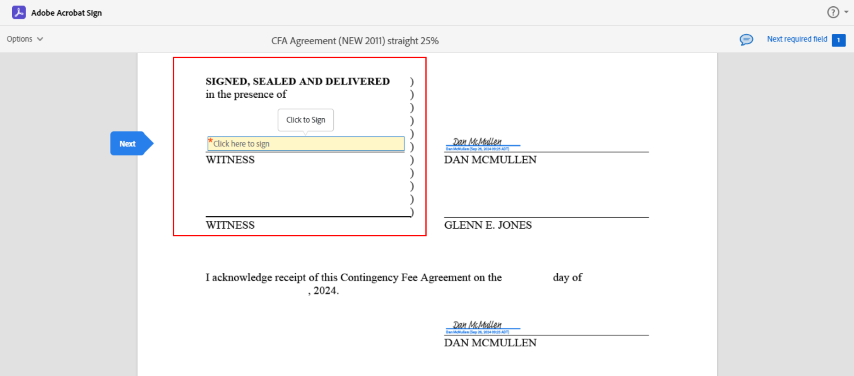
NOTE the witness name is auto populated
All three signature fields now show as completed
Click Click to Sign to complete the process